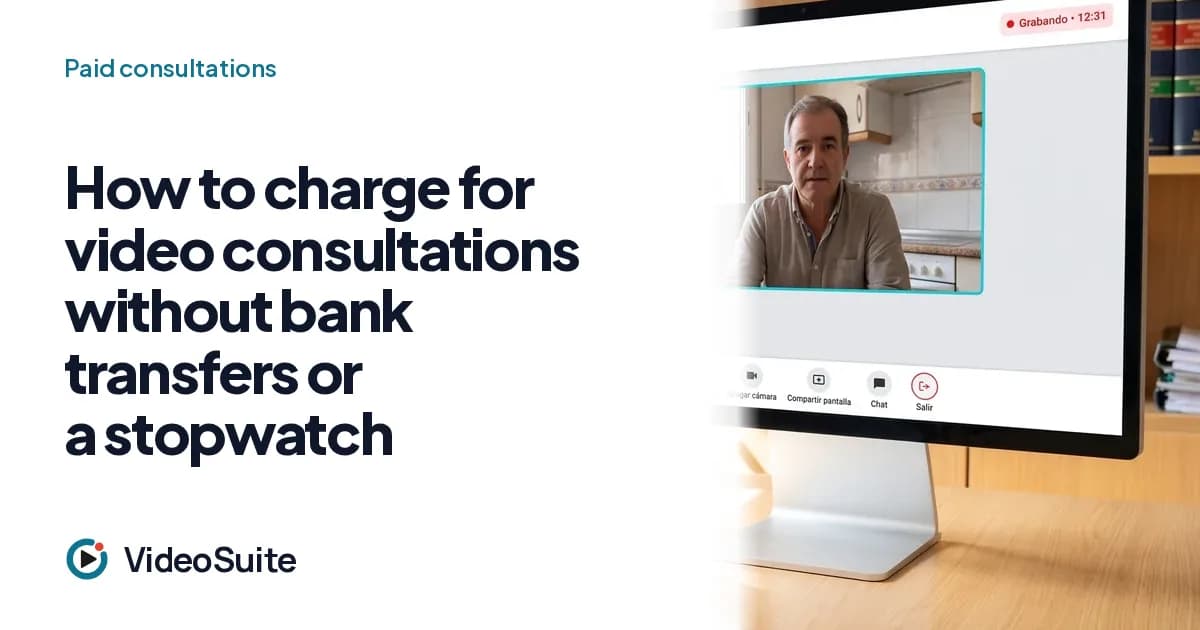
If you give consultations by video (as a lawyer, doctor, physiotherapist, trainer or coach), your product is an hour of your attention. And that hour carries an admin problem that has nothing to do with your craft: getting paid for it beforehand, starting it on time and ending it on time. This article covers the problem, the tools that exist today with their published prices, and how we approach the complete flow, including payment, which works in test mode today.
The problem: four leaks of time and money
- Chasing bank transfers: the consultation happens, the invoice goes out, and payment arrives whenever it arrives. Sometimes you have to ask for it, which is awkward with a client.
- No-shows: someone who has paid nothing upfront loses nothing by not connecting. You lose the slot.
- Running over: the 45-minute consultation ends at 70, and the next person waits or finds you rushed.
- Timing by eye: watching the clock while you listen is bad for you and for the person paying you to listen.
The options that exist today
There are very good tools for the booking and payment part. According to their official pages, read on 10 October 2026:
- Calendly: the Standard plan costs USD 10 per seat per month billed annually, and it is where payments with Stripe and PayPal appear.
- Cal.com: its free plan includes one user with Stripe and PayPal payments; the Teams plan costs USD 12 per user per month billed annually.
- TidyCal: the free plan accepts paid bookings with a 1% platform fee on Stripe.
- Google Calendar: can charge through Stripe, but only on eligible Workspace editions and with the admin enabling it.
- Zoom Scheduler: Stripe payments are available only in the United States and the United Kingdom.
The usual pattern is to pair one of these schedulers with a Zoom or Meet link. With Calendly Standard (USD 10) and Zoom Pro (USD 14.16 to 16.99, depending on annual or monthly billing) you get roughly USD 24 to 27 per user per month; that is our own calculation from the official pages, in USD and before VAT. It works, and for many consultations it is enough.
What that combination does not solve
In what we have read, payment and the room are separate products that do not talk to each other. The client pays and gets a link, but the room does not know which hour was paid for or when it ends: the clock remains your problem. And what is said in the consultation (the recording, if any, the summary, the agreed tasks) ends up somewhere else, not tied to the booking or the client.
What VideoSuite solves today, and what it does not
VideoSuite includes selling 1:1 sessions through Stripe Connect, but today only in Stripe's test mode: the whole flow works, it does not move real money yet, and we will say so here when it is switched on. This is what it includes today, together with everything else it brings into one place:
- Payout account: you connect a Stripe account (Connect Express) to your profile or to your whole organization, and the payment goes straight to that account. Stripe charges its fee to the seller and VideoSuite applies a platform fee on what you receive (price minus included VAT and minus Stripe's fee): 10% on Free, 5% on Professional and 2% on Team, and custom on Enterprise. If you sell the session from a LearnSuite, MentorSuite or AlmaSuite academy, that academy's plan fee applies and VideoSuite adds none of its own.
- Paid offer: a booking link with a price, a currency (EUR, USD, GBP, CHF or MXN) and a refund policy. If you cancel, everything is refunded; if the client cancels, everything is refunded when at least the number of hours you set remain (24 by default) and nothing after that.
- Payment at booking: the person picks a slot, pays by card in Stripe Checkout and the slot is held for about 40 minutes while they pay. Once the payment is confirmed the meeting is created with its invitation and reminders; if the slot were lost or the meeting could not be created, the payment is refunded in full.
- In the room, a countdown to the end of the booked hour. It is informational only: it does not remove anyone or cut the call.
- Personal booking links: the person picks a free slot in your calendar (with Google Calendar connected) and gets the invitation and the reminders by email.
- The room under your brand, in the browser with nothing to install, with the recording announced before joining and a real pause.
- The transcript with each person's name, because every microphone is recorded on its own track.
- The report with a summary, tasks with owner and date and commitments, plus the personal, revocable link so your client receives their summary.
That way you do not have to take notes during the consultation: you talk, and the summary and tasks are waiting when you finish.
Your duties as a professional
Recording a consultation is not just a technical feature; it comes with duties. This is not legal advice, but a list of questions to ask yourself (and, if your profession has a professional body or code of ethics, to put to them):
- Consent: the person must know it is being recorded before it starts. In VideoSuite the notice appears before joining, and any authorized participant can pause the recording; nothing is captured during the pause.
- Data protection: the GDPR and Spain's LOPDGDD expect a legal basis, clear information, a purpose and a retention period. In VideoSuite data is hosted on servers in the European Union and, when an organization uses it, the organization is the controller and we act as the processor.
- Professional secrecy and health data: lawyers and healthcare professionals handle especially sensitive information. In VideoSuite a recording is kept for as long as the organization needs it and deleted on explicit request; choose your retention period and state it in your privacy policy.
What you can do today
- To charge real money today, pick a scheduler with payments (Calendly, Cal.com or the one in your Google suite) and require payment at booking, not afterwards.
- State the exact duration in the confirmation, and what happens if the client does not show up.
- Set an alarm five minutes before the end instead of glancing at the clock (the countdown in the VideoSuite room reminds you too).
- If you record, say so in writing at booking and out loud at the start.
- Decide how long you keep recordings and state it in your privacy policy.
VideoSuite takes care of booking, the room and the after-call analysis of each consultation; real-money payment, for now, stays with the tool you already use, until we switch on VideoSuite's own.
How each option on the market solves it
- Calendly with Zoom: booking with payment (Stripe and PayPal on Calendly's paid plans) and the Zoom room, as separate licences.
- Whereby: a browser room with your own brand from its Pro plan (10.99 USD per host a month, per its page of 19 October 2026); the Meetings page we read does not mention charging for sessions.
- VideoSuite: booking, payment through Stripe Connect (in test mode today), a room with your brand and a summary for the client in one place.